
Customize the system's sheet
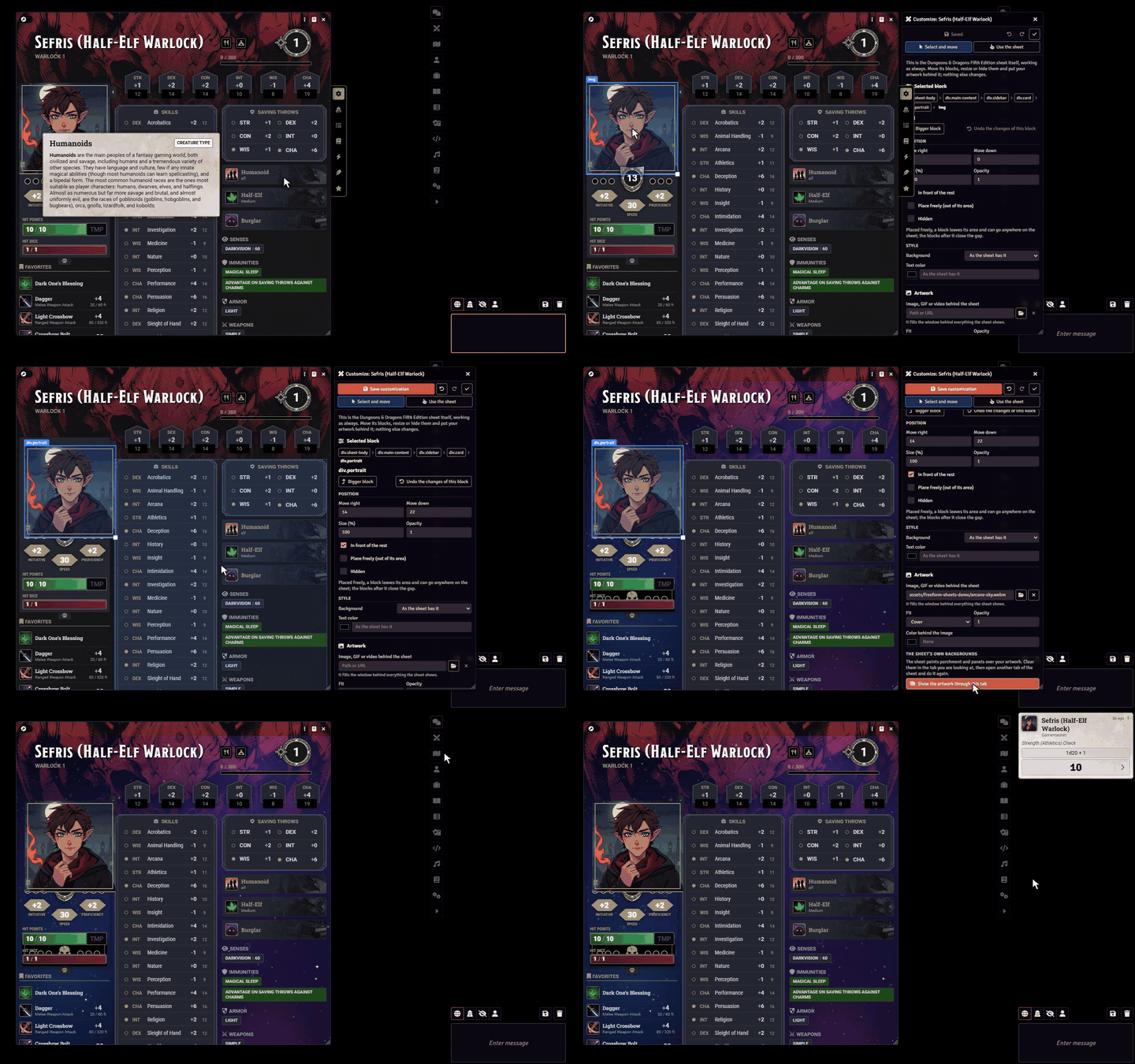
With Customize sheet you work on the system's own sheet: move blocks and change their size, hide what you don't use, change colors and put an image, GIF or video behind it. Since it is still the system's sheet, everything keeps working the same way: rolls, fields, dragging items and the system's updates.
How it works under the hood
The module neither changes nor copies the system's sheet. A customization is only a set of visual adjustments applied to that window, plus an artwork layer behind it. It is stored on the character and shows for everyone who opens their sheet.
Open the customizer
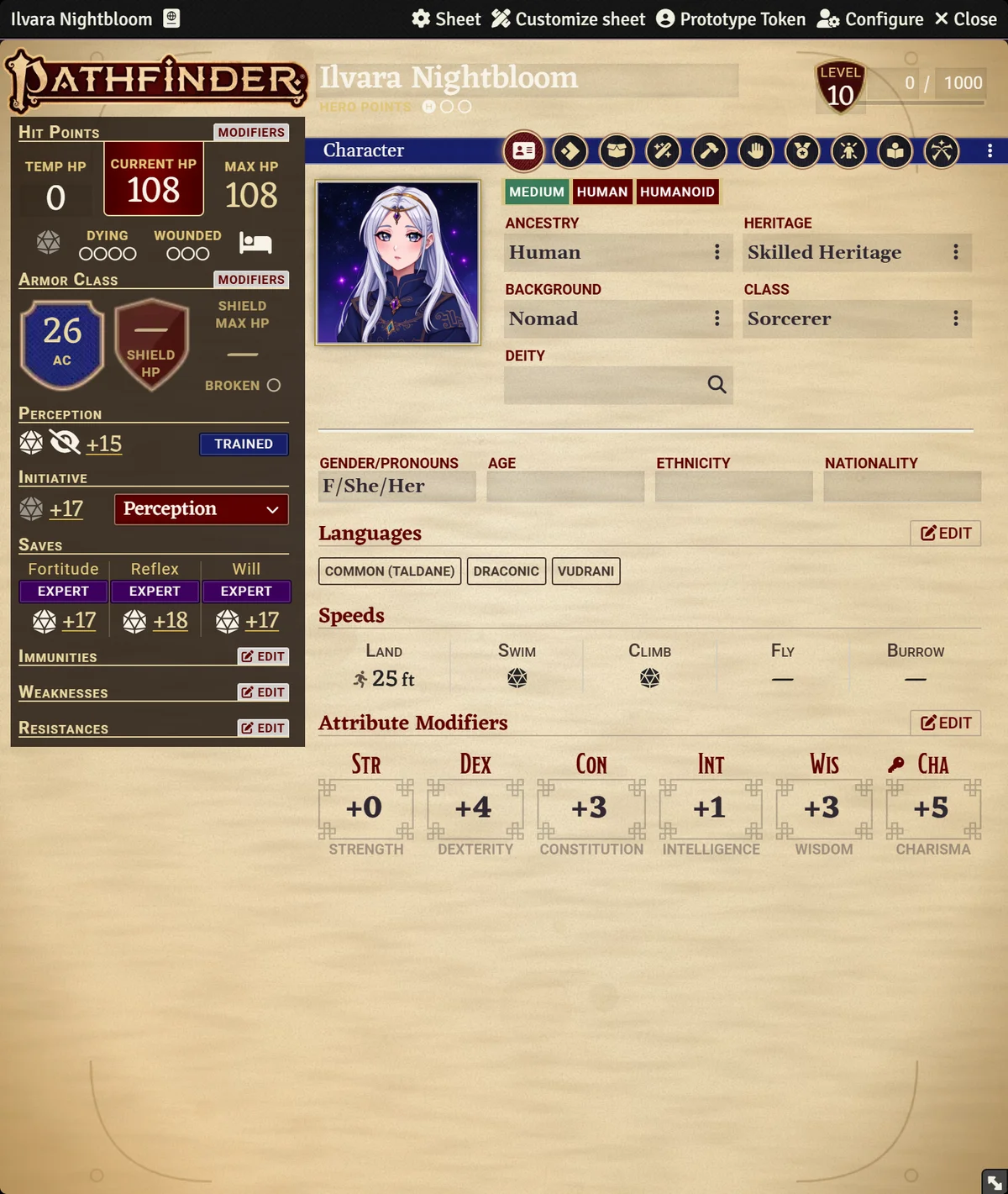
- FateX, Pathfinder 2e and most systems: click Customize sheet at the top of the sheet window.
- D&D 5e: the same entry is in the menu at the top of the window, behind the three-dot button.
- In the Freeform Sheet: the Standard Sheet tab shows the system's sheet already customized, and the pencil of that tab opens the customizer.
A small window opens next to the sheet. The button shows for the character's owners and for the GM. If the GM kept editing to themselves (see Settings and permissions), only the GM sees it.
The customizer window
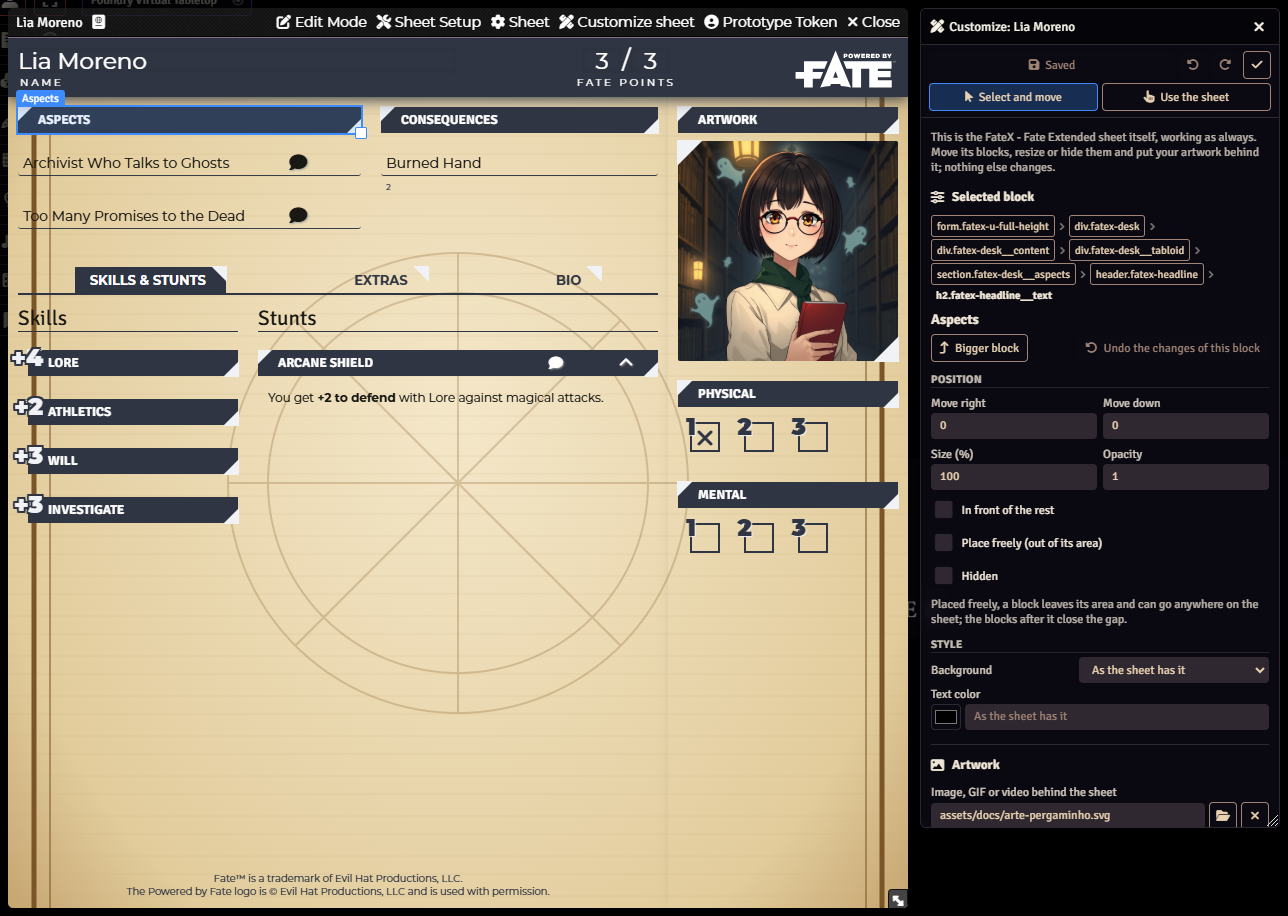
At the top are Save customization, undo, redo and the close button. Just below, two modes:
- Select and move: clicks on the sheet select blocks. Nothing is rolled or edited by accident.
- Use the sheet: clicks go through to the sheet, for example to open another tab of it and customize that one too.
The panel has the sections Selected block, Artwork, Changes, Templates and sharing and Keyboard and mouse. At the bottom are the Documentation and Discord buttons.
Select a block
Move the mouse over the sheet: the block under the cursor is highlighted. Click to select it.
Above the block's name is the path to it, with the bigger blocks that contain it. Click one of them, or Bigger block, to select a bigger block. This is handy when you want to move a whole group, such as all the skills at once.
A block that cannot be selected
If you see a warning that this part of the sheet cannot be identified reliably, select a bigger block. Some parts change every time the sheet updates, and the module only keeps what it can find again.
Move and resize
- Drag the block to move it.
- The corner handle changes its size.
- The arrow keys move it 1 pixel; with Shift, 10 pixels.
In the panel, under Position, the same adjustments show as numbers:
| Field | What it does |
|---|---|
| Move right | Horizontal distance, in pixels. Negative numbers move left. |
| Move down | Vertical distance, in pixels. Negative numbers move up. |
| Size (%) | Scale of the block, from 20% to 500%, from its center. |
| Opacity | From 0 (invisible) to 1 (normal). |
Just below:
- In front of the rest: puts the block over its neighbours.
- Hidden: hides the block, but its space stays reserved, so the other blocks don't jump around.
Moving only changes the drawing
The block's original space stays taken on the sheet. To take the block out of its place for good, use Place freely, just below.
Place freely
A block inside a scrolling area, such as the Pathfinder 2e sidebar or a list, is cut off at the edge of that area when you drag it out. When that happens, the panel warns you and offers Place freely.
Placed freely, the block leaves its area and can go anywhere on the sheet, and the blocks after it close the gap. The Place freely (out of its area) option shows whether the block is placed freely and lets you put it back.
When the block cannot be placed freely, the panel suggests moving a bigger block.
Colors
Under Style:
- Background: As the sheet has it, Transparent (shows the artwork) or A color. With A color, the Background color field appears.
- Text color: applies to the block and to everything inside it, because sheets usually color each label separately.
Artwork behind the sheet
In the Artwork section:
| Field | What it does |
|---|---|
| Image, GIF or video behind the sheet | Path or address of the artwork. The folder button opens Foundry's file browser; the X removes the artwork. |
| Fit | Cover fills the window and crops what is left over; Contain shows the whole artwork; Stretch stretches it to fit. |
| Opacity | Makes the artwork lighter or stronger. |
| Color behind the image | Color that shows where the artwork does not cover. |
The artwork fills the window behind everything the sheet shows, below the title bar.
Show the artwork through the sheet
Most sheets paint parchment and panels over your artwork. To see the artwork:
- Open the tab of the sheet you want to show.
- Click Show the artwork through this tab. The large panels of that tab become transparent.
- For another tab, click Use the sheet, open the tab, go back to Select and move and repeat.
Give back the sheet's backgrounds undoes it; the number on the button shows how many panels are transparent.
Changes
The Changes section lists every block you changed. Click one to select it; the eye hides or shows it; the arrow undoes the changes of that block.
A broken chain icon marks a block that is not on the sheet right now: an item that was removed, or a part the sheet no longer shows.
Save
Click Save customization or press Ctrl+S. If you close with unsaved changes, the module asks what to do.
The customization applies to the sheet it was made on. If the character switches to another sheet, it stops showing, and it comes back when the character goes back to the original sheet.
Templates and sharing
In the Templates and sharing section:
- Save as a template for everyone (GM only): keeps the customization as a named template, available to the whole table.
- Template and Apply to this sheet: any owner applies a template to their own sheet. The template is copied, so changing or deleting it later does not change the sheets that already used it.
- Delete template (GM only).
- Export customization and Import customization…: save and load the customization in a JSON file, to take it to another world or hand it to someone.
- Remove every customization: the sheet goes back to exactly how the system draws it. You can still undo before saving.
Keyboard and mouse
| Shortcut | What it does |
|---|---|
| Click | Selects the block |
| Drag | Moves the block; the corner handle resizes it |
| ← ↑ → ↓ | Moves 1 pixel; with Shift, 10 pixels |
| Ctrl+Z / Ctrl+Y | Undo / redo |
| Ctrl+S | Saves |
| Esc | Clears the selection |
| Mouse wheel | Scrolls the sheet |
Limits
- Moving a block only changes the drawing: its original space stays taken, unless you use Place freely.
- Some blocks are positioned by the sheet itself relative to a bigger block. When you move that bigger block, they may move along.
- After a big system update, some parts of the sheet may change. Blocks the module cannot find show in Changes with the broken chain.