
Sharing and examples
Freeform Sheet layouts and customizations of the system sheet can be saved to JSON files and loaded on another character, in another world or in someone else's Foundry.
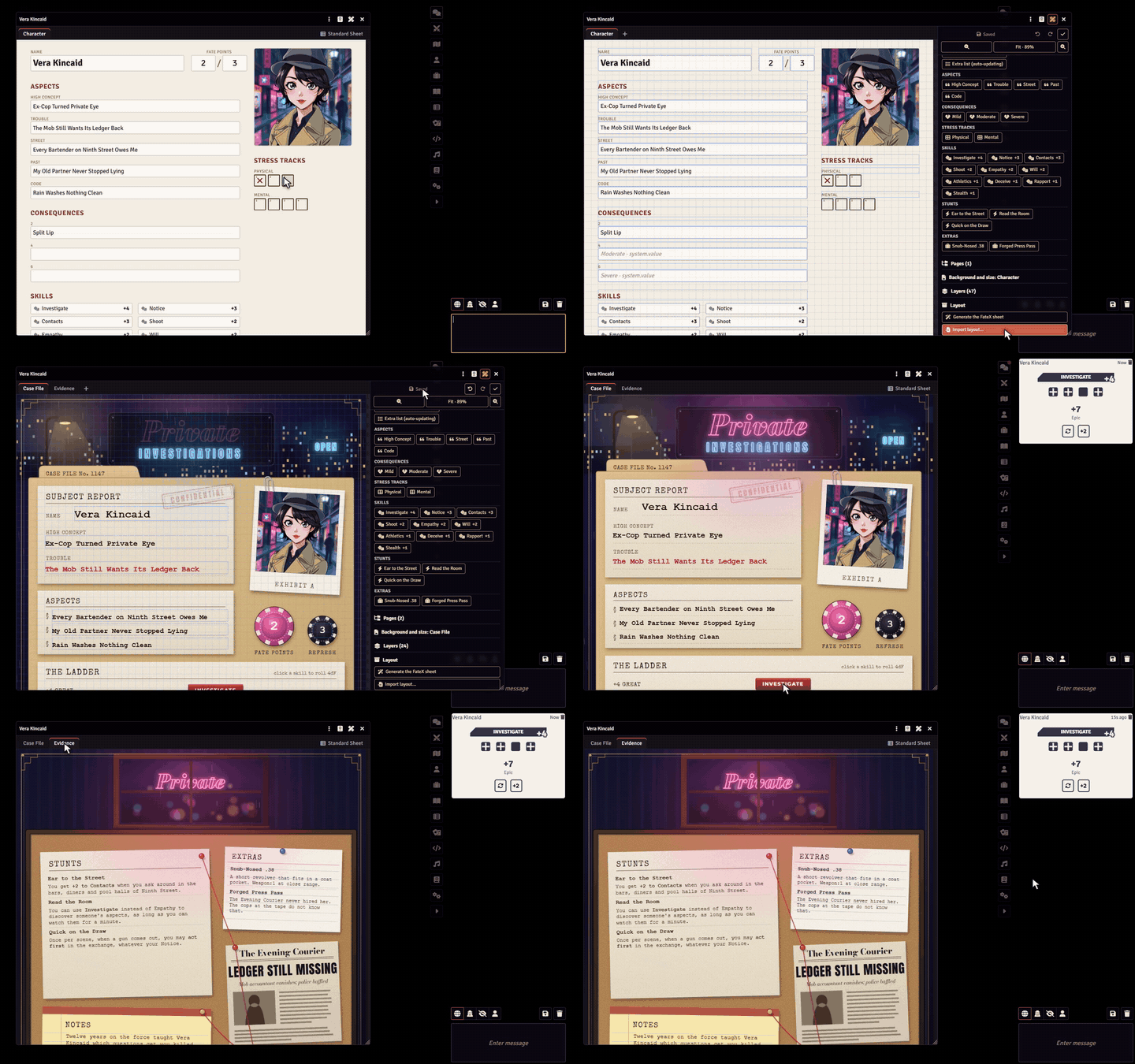
Export a layout
There are two ways:
- in the three-dot menu at the top of the Freeform Sheet, Export layout;
- in the layout editor, Layout section, Export layout.
The browser downloads a file named character-name-sheet-layout.json.
Import a layout
- Open the Freeform Sheet of the character that will receive the layout and click Edit layout.
- In the Layout section, click Import layout… and choose the JSON file.
- The layout shows in the editor. Check it and click Save layout: until you save, nothing changes on the character.
Elements linked to items look for an item with the same type and the same name on the character that receives the layout. If some are not found, the module tells you how many elements were left without an item; they get the broken chain badge in the editor, and you can add the item to the character or link the element to another one.
The artwork is not inside the file
The JSON stores the path or address of the background images, not the images. To pass a layout on to someone, send the artwork too and ask them to put the files at the same path in their Foundry. If the artwork is at an internet address, the layout works right away.
One layout for several characters
When every character at the table uses the same layout, each on their own artwork, there is no need to place the elements sheet by sheet:
- Build the layout once, on any character. As the GM, click Save as a template for everyone in the Layout section of the editor.
- On each character, open the editor, pick the template under Template and click Apply to this sheet. Players can do this on their own characters.
- Put the character's artwork on the page, if it has none yet, and save.
With Keep this sheet's artwork when applying a template or importing a layout on, as it comes, a sheet that already has artwork keeps it, and the elements are resized to it by width. Import layout… works the same way.
Draw the variations on the same canvas
For the elements to land on the same spots, make every artwork the same size, or at least the same proportions: draw the variations from one base file and keep the boxes where they are. A different proportion keeps the horizontal positions but moves the vertical ones.
Templates belong to the world and to its game system. A template is a copy: changing or deleting it later does not change the sheets that used it. To apply one to many characters at once, see the API examples.
Share a customization
Customizations of the system sheet work the same way, in the customizer panel, Templates and sharing section:
- Export customization downloads a JSON;
- Import customization… loads a JSON; save to keep it.
Inside the same world, the easiest way is templates: the GM saves a customization as a template and each player applies it to their own sheet. See Templates and sharing.
A customization only applies to the same kind of sheet it was made on: a customization of the PF2e character sheet does not fit the D&D 5e sheet.
Included example
The module ships an example layout with an original artwork drawn for it. The artwork is already installed with the module; download the layout here and import it.
Casebook (FateX)
A hand-drawn FateX sheet, with each element on a box of the artwork.
- Download: fatex-demo-layout.json
- Items are recognized by type and by name. The character needs: the aspects High Concept and Trouble; the skills Lore, Athletics and Will; the stress tracks Physical and Mental; the consequence Mild; and the stunt Arcane Shield.
Download instead of opening
If the browser opens the file instead of downloading it, right-click the link and choose to save it.
Show what you made
Made a nice sheet? Share it on Discord: other tables can use your layout, and your examples help improve the module.