
The Freeform Sheet
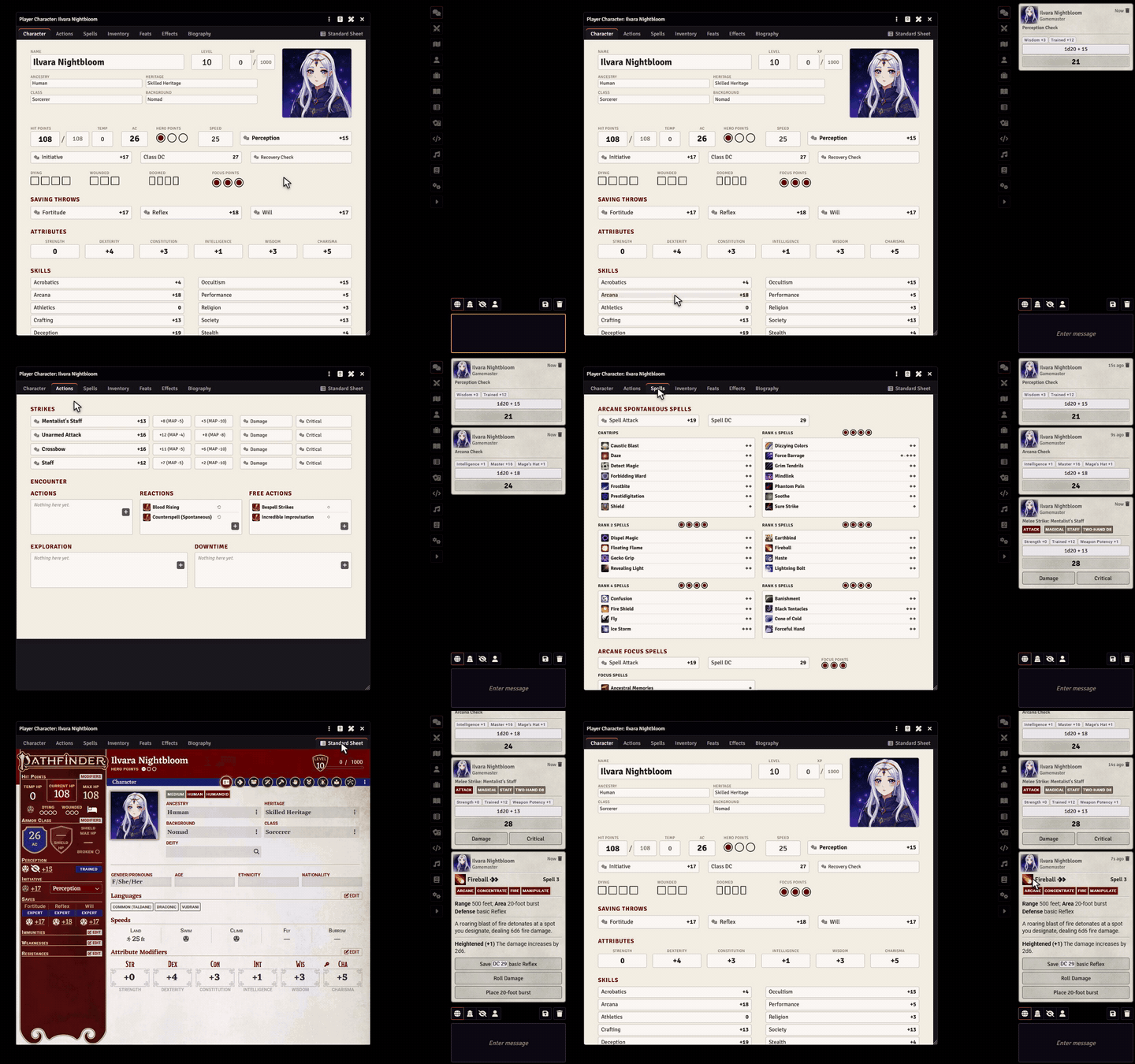
The Freeform Sheet is a new sheet that Sheet Tailor offers for any character. It opens complete, with everything the system sheet has, and can be built on your own art, across up to 20 pages.
Turn it on
- Open the character and click Sheet at the top of the window. On D&D 5e, use Configure Sheet, in the three-dot menu.
- In This Sheet, choose Freeform Sheet (custom layout) and save.
The choice applies to that character only. For every character of a type to use the Freeform Sheet, the GM can pick it in Default Sheet, in the same window. The module never changes anyone's sheet on its own.
What comes ready
- D&D 5e, Pathfinder 2e and FateX: a complete sheet, split into tabs like the system sheet, with each system's rolls, resources and item lists. The details are in Systems.
- Other systems: a page with the name and portrait and an Items tab with one list per item type. From there, any field of the system can be linked from the editor. See Other systems.
Every list shows even when it is empty, so items added later show up in the right place. The background artwork is an extra: the sheet works without it.
Playing with the Freeform Sheet
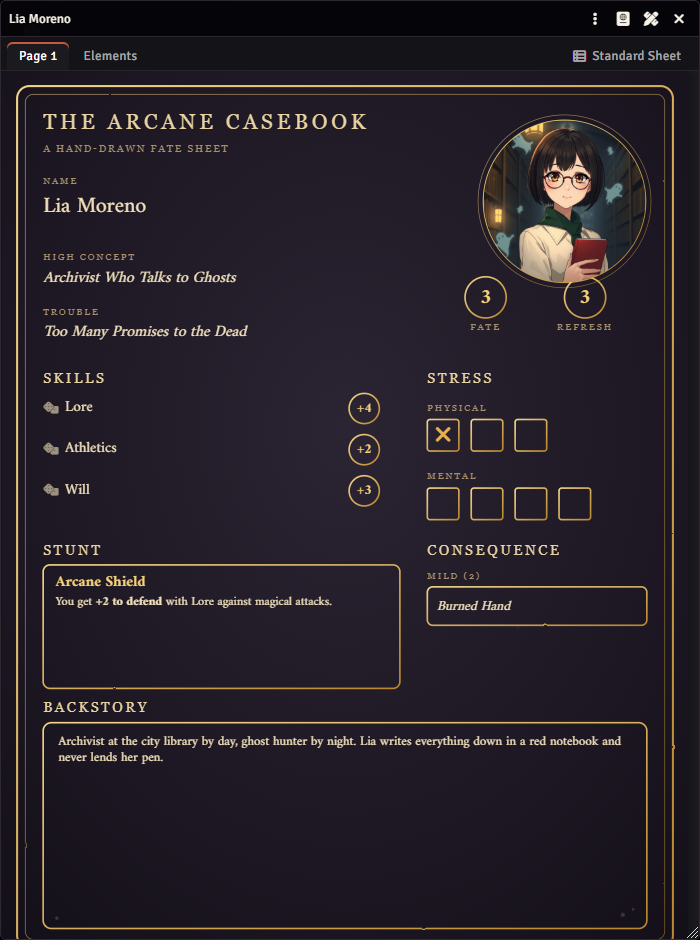
| Element | How to use it |
|---|---|
| Tabs | One per page of the sheet. The last one is the Standard Sheet. The tab you left open is remembered in this browser. |
| Fields | Click and type. Enter or leaving the field saves; Esc undoes what you typed. |
| Checkboxes and box tracks | Click to tick or untick. In a counter track, clicking the last ticked box unticks it. |
| Roll buttons | Call the system's own roll, with the same dialogs and chat cards. |
| Rich text | The pencil opens Foundry's text editor. |
| Item lists | Click the name to open it, roll it or post it to chat, depending on the layout. The pencil edits, the trash can deletes and the + adds. Right-clicking an item opens its sheet. |
| Portrait | Click to change the character's image, or just to view it if you cannot upload files. |
Values the system calculates on its own, such as an armor class derived from armor, are shown read-only. Everyone who can open the sheet sees the layout, but only those who can edit the character can change the values.
Dragging items onto the sheet
Drop an item from a compendium or from the sidebar anywhere on the page, and it is added to the character as on the system sheet. On D&D 5e and Pathfinder 2e, the list under the cursor decides where the item goes: a spell dropped on the list of a spell level, for example, goes to that level.
The Standard Sheet tab
The last tab is the system's own sheet, whole and working as always, inside the same window. It covers everything the pages don't: character creation, system settings, tabs you did not bring to your art.
- If you customized the system's sheet, it shows customized here too, and the pencil of this tab opens the customizer.
- The window widens when this tab opens, so the system sheet fits.
- The tab can be renamed or turned off in the editor, under Pages.
The three-dot menu at the top of the window has:
- Open the system sheet: goes to the Standard Sheet tab. If that tab is off, it opens the system sheet in a separate window.
- Export layout: saves the layout to a JSON file. See Sharing and examples.
Edit the layout
The ruler and pencil button, Edit layout, is at the top of the window, next to the close button. It only shows for those who can edit that character's layout. What you can do with it is in The layout editor.
Where the layout is stored
The layout is stored on the character itself. That is why it goes along when the character is duplicated, exported or kept in a compendium. To use the same layout on another character, export and import the JSON: items are recognized by type and by name.