
The layout editor
On the Freeform Sheet, click the ruler and pencil button, Edit layout, at the top of the window. The sheet enters editing mode: the elements of the page can be selected and dragged, and a column of controls appears next to the page.
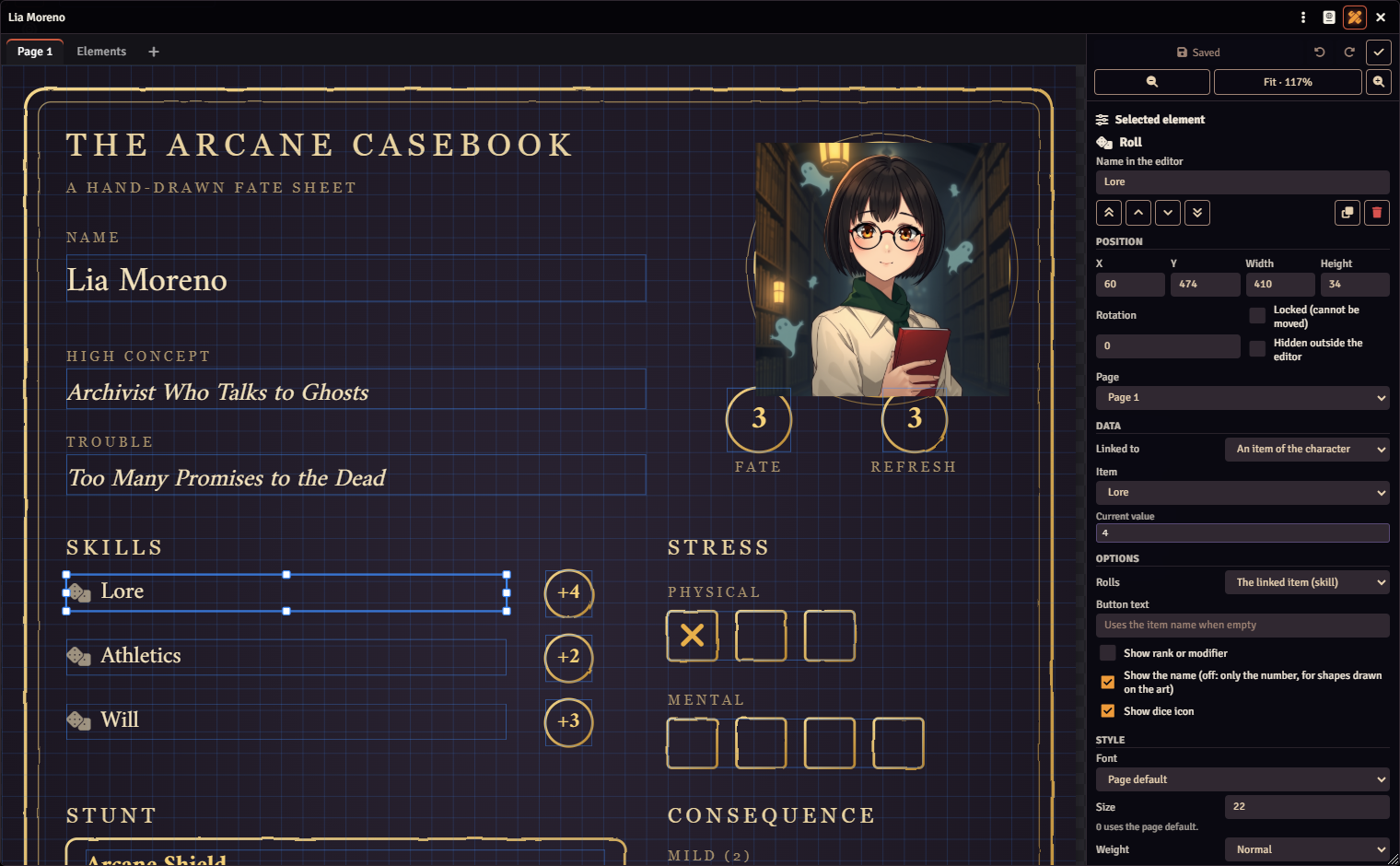
The editor works on one page at a time. The tabs switch the page being edited, and the + next to them creates a new page.
The top bar
| Button | What it does |
|---|---|
| Save layout | Saves the layout on the character (Ctrl+S). Shows Saved when there is nothing to save. |
| Undo / Redo | Ctrl+Z and Ctrl+Y. |
| Close editor | Goes back to play mode. |
| Zoom out / Zoom in | Page zoom. The number in the middle shows the zoom; clicking it does Fit to window. |
If you close the editor with unsaved changes, the Unsaved layout question appears, with Save, Discard and Keep editing.
Select
- Click an element to select it.
- Shift or Ctrl + click adds elements to the selection or removes them.
- Ctrl+A selects every element of the page; Esc clears the selection.
- Double-click an element to select it and jump straight to its text or data in the panel.
- The Layers list also selects, which helps with small elements or elements hidden behind others.
A selection never mixes pages.
Move and resize
- Drag to move. Elements snap to the page grid; hold Alt to ignore it.
- The handles around the selected element change its size; with Shift, the proportions are kept.
- The arrow keys move it 1 pixel; with Shift, 10 pixels.
The grid size is in Background and size.
The selected element panel
The Selected element section shows the element type and, below it:
- Name in the editor: optional, shows in the layers list.
- The layer buttons: Bring to front, Bring forward, Send backward and Send to back; and Duplicate and Delete.
- Position: X, Y, Width, Height and Rotation, in page pixels and degrees.
- Locked (cannot be moved): protects the element from accidental drags.
- Hidden outside the editor: the element only shows while you edit. Use it to keep elements you are not ready to show yet.
- Page: moves the element to another page. Only shows when the sheet has more than one.
- Data: what the element is linked to. See Data links.
- Options: what changes from one element type to another. See Elements.
- Style: font, colors, borders and the rest of the look. See Style.
Several elements selected
With more than one element selected, the panel shows buttons to align and distribute:
| Button | What it does |
|---|---|
| Align left edges, Align horizontal centers, Align right edges | Aligns horizontally. |
| Align top edges, Align vertical centers, Align bottom edges | Aligns vertically. |
| Distribute horizontally, Distribute vertically | Leaves the same space between the elements. |
| Same width as the last selected, Same height as the last selected | Matches the sizes. |
Style changes made at that moment apply to every selected element.
The other sections of the panel
| Section | What it is for |
|---|---|
| Add element | The nine element types. The new element appears in the middle of the visible area. See Elements. |
| Sheet data | Ready-made, working elements for the character's system, such as hit points, skills or spell lists. They appear in the middle of the visible area; drag them onto your art. |
| Pages | Create, rename, reorder and delete pages, add ready-made pages and set up the standard sheet tab. See Pages and backgrounds. |
| Background and size | The page's artwork, size and grid, and the sheet's default text. |
| Layers | Every element of the page, from front to back. |
| Layout | Templates of the world, and generate, import, export and clear the layout. |
| Documentation and Discord | At the bottom of the panel: open this documentation and the invite to the community on Discord. |
Layers
The list shows each element's name and, next to it, the data it is linked to. Click one to select it. The eye toggles Hidden outside the editor; the padlock toggles Locked.
On the page, some elements get a badge while you edit:
- Broken chain: the item the element was linked to no longer exists on the character.
- Chain: the element is not linked to any data yet.
- Padlock and crossed-out eye: locked and hidden outside the editor.
Layout
Templates are layouts the GM saved in the world. Pick one under Template and click Apply to this sheet: the sheet takes its pages and elements, and you save to keep them. The list shows the templates of the world's game system.
Keep this sheet's artwork when applying a template or importing a layout comes on: every page keeps the artwork it already has, with its size, and the elements are resized to it by width. Turn it off to take the template's or the file's artwork as well. See One layout for several characters.
| Button | What it does |
|---|---|
| Apply to this sheet | Replaces the layout with the chosen template. You can still undo before saving. |
| Delete template | GM only. Removes the template from the world; sheets that used it keep their layout. |
| Save as a template for everyone | GM only. Saves the layout as it is in the editor as a template of the world. |
| Generate the system sheet | Replaces the whole layout with a complete, working sheet, with every page. Background images are kept, and you can still undo before saving. |
| Import layout… | Loads a layout from a JSON file. |
| Export layout | Saves the layout to a JSON file. |
| Remove every element of this page | Clears the current page. The background stays. |
| Delete the saved layout | Deletes the layout stored on the character and goes back to the generated sheet. It cannot be undone. |
Keyboard and mouse
| Shortcut | What it does |
|---|---|
| Drag | Moves; with Alt, ignores the grid |
| Handles | Resize; with Shift, keep the proportions |
| Shift or Ctrl + click | Adds to the selection |
| Double-click | Edits the element's text or data |
| ← ↑ → ↓ | Moves 1 pixel; with Shift, 10 pixels |
| Ctrl+Z / Ctrl+Y | Undo / redo |
| Ctrl+D | Duplicates |
| Del | Deletes |
| Ctrl+A | Selects every element of the page |
| Esc | Clears the selection |
| Ctrl+S | Saves |
| Ctrl + mouse wheel | Zoom |
While the editor is open, these keys do not reach the rest of Foundry: the arrows don't move tokens and Del doesn't delete anything on the map.