
Data links
On the Freeform Sheet, a field works because of the data it is linked to, not because of where it sits on the page. That is why you can put any element anywhere on your art, and it still reads and writes the right character data.
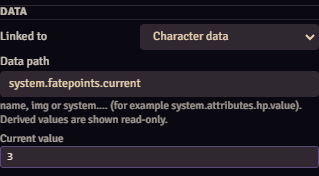
The link is in the Data part of the selected element, under Linked to:
| Option | What it is for |
|---|---|
| Nothing | The element reads no data. |
| Character data | Data of the character itself, such as hit points or level. |
| An item of the character | Data of an item the character has, such as a skill's rank or a stunt's description. |
| Custom value | A value the module stores on the character, for anything the system does not track. |
Just below, Current value shows what the element is reading at that moment. It is the quickest way to check that the link is right.
Start with Sheet data
On systems with dedicated support, the editor's Sheet data section creates elements already linked to the right data. Use manual links for whatever is not there.
Character data
In Data path, write where the data lives on the character. The accepted paths are:
name: the character's name;img: the portrait;- any path starting with
system., such assystem.attributes.hp.value.
As you type, the field suggests the system's most used paths, with the name of each.
Values the system calculates from others, such as an armor class that comes from the armor, show as read-only: the element shows the value but does not let you edit it. To change it, edit the data it comes from.
Why only these paths
Layouts can be imported and edited by players, and the GM opens those sheets too. Limiting links to name, img and system. keeps an innocent-looking element from touching permissions or other modules' data when the GM clicks it.
An item of the character
- In Item, choose one of the character's items. They are grouped by type.
- In Item field, write the path of the data inside the item, such as
system.rank. Empty, the module picks the most common field for that element type: the item name in a field, the description in a rich text and, on FateX, a skill's rank or an aspect's text.
The element stores the item and also its name and type. If the item disappears, for example when the layout is imported on another character, the module looks for an item with the same name and type. That is why a layout exported from one character works on another that has the same items.
When no item is found, the element gets the broken chain badge in the editor, and the item shows as "(missing)" in the list.
Custom value
In Key, give the value a short name, such as xp or luck. The module stores that value on the character itself.
Use it for anything the system does not track: a campaign track, a reputation, short notes. Two elements with the same key show the same value, so you can have the same track on two pages.
How to find a path
- Start with the suggestions of the Data path field and with the Sheet data elements.
- Use the system sheet as a guide. The data name usually resembles the sheet's label: hit points, for example, usually live somewhere like
system.attributes.hp.value. - Look at the character's data. Press F12 in Foundry, open the console and type
game.actors.getName("Character name").system. The result shows everything the character stores; the path is the name of each level separated by dots, starting withsystem..
After writing the path, check Current value.
The paths of each system with dedicated support are on the Systems pages, and Other systems has examples for systems without dedicated support.