
Pages and backgrounds
Each page of the Freeform Sheet is a tab, with its own artwork and size. A sheet can have up to 20 pages: one for the character, one for spells, one for the inventory, or any split that fits your art.
Pages
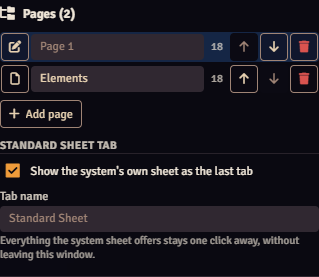
In the editor, the tabs switch the page being edited, and the + next to them creates a blank page. The Pages section of the panel holds the rest:
| Control | What it does |
|---|---|
| Icon on the left | Opens that page for editing. The pencil icon marks the current page. |
| Name | Renames the tab. Empty, it is called "Page 1", "Page 2" and so on. |
| Number | How many elements the page has. |
| Move left / Move right | Changes the order of the tabs. |
| Delete page | Deletes the page and its elements. If it has elements, the module asks first. You can still undo before saving. |
| Add page | Creates a blank page. |
A sheet always has at least one page.
Ready-made pages
Ready-made pages lists the complete pages of the sheet generated for the character's system, such as Spells or Inventory. Each one is added as a new, working tab.
This is useful when you built one page on your art and want the other parts of the sheet without drawing anything: for example, your art for the character's front page and the ready-made actions, inventory and feats pages next to it.
Move elements between pages
Select the elements and choose the other page in Page, in the selected element section. The editor follows to the destination page.
The standard sheet tab
Under Standard sheet tab:
- Show the system's own sheet as the last tab: turns the Standard Sheet tab on or off.
- Tab name: the name the tab shows.
With the tab off, the system sheet is still one click away, in Open the system sheet, in the window's three-dot menu.
Background and size
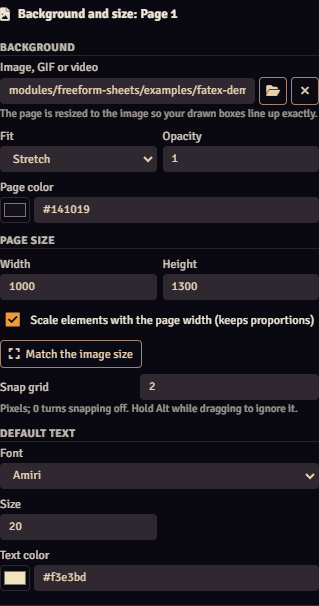
The Background and size section applies to the page being edited; its name shows in the section title.
Background
| Field | What it does |
|---|---|
| Image, GIF or video | Path or address of the artwork. The folder button opens Foundry's file browser; the X removes the artwork. |
| Fit | Cover fills the page and crops what is left over; Contain shows the whole artwork; Stretch stretches it to fit. |
| Opacity | Makes the artwork lighter or stronger. |
| Page color | Color that shows where the artwork does not cover, or the whole page when there is no artwork. |
When you choose an image, the page takes the size of the image. That way, the spaces you drew are exactly where the elements are, and the alignment holds at any window size: the whole page is scaled to fit.
Animated GIFs and WebM or MP4 videos work as backgrounds too. Videos play in a loop, without sound. See Animated sheets.
Page size
| Field | What it does |
|---|---|
| Width / Height | Page size in pixels, from 100 to 8000. |
| Scale elements with the page width (keeps proportions) | When on, elements follow any change of the page width in the same proportion. On by default. |
| Match the image size | Brings the page back to the exact size of the background image. |
With scaling on, replacing the artwork with a bigger or smaller version of the same drawing keeps everything aligned: the page takes the size of the new image and the elements follow the width. Changing only the height adds or removes room at the bottom, without touching the elements.
Snap grid
Grid size in pixels. Elements snap to it when you drag or resize them. 0 turns the grid off, and holding Alt while dragging ignores the grid for that move only.
Default text
Font, Size and Text color apply to every text element of the sheet, on every page, that has no style of its own. It is the quickest way to change the font of the whole sheet.
Tips for the artwork
- Draw at the size you will use. Between 1000 and 1600 pixels wide usually looks sharp without being heavy.
- Light files load faster for everyone. Prefer WebP or JPG for images and short WebM for animations. A multi-megabyte artwork is downloaded by every player who opens the sheet.
- Leave the field spaces empty in the art. The field text shows on top, and numbers drawn in the art don't change.
- Keep the artwork inside Foundry, in the data folder, so every player can see it. Internet addresses work, but depend on the site staying online.
- Without permission to upload files, a player can paste an image address into the background field.